AI Chatbot for Website: Build, Test and Sell It Under Your Brand
Build a website chatbot that answers approved questions, captures the right details, routes the next step, and gives agency clients a branded way to review the work.
· Reviewed by Raj Baruah, founder of VoiceAIWrapper
1,000+ agencies have used the platform · 5.0/5 on SaaSHub and G2 · 60-minute setup · Cancel any time
7-day trial. Card required. Your selected plan starts on day 7 unless canceled.
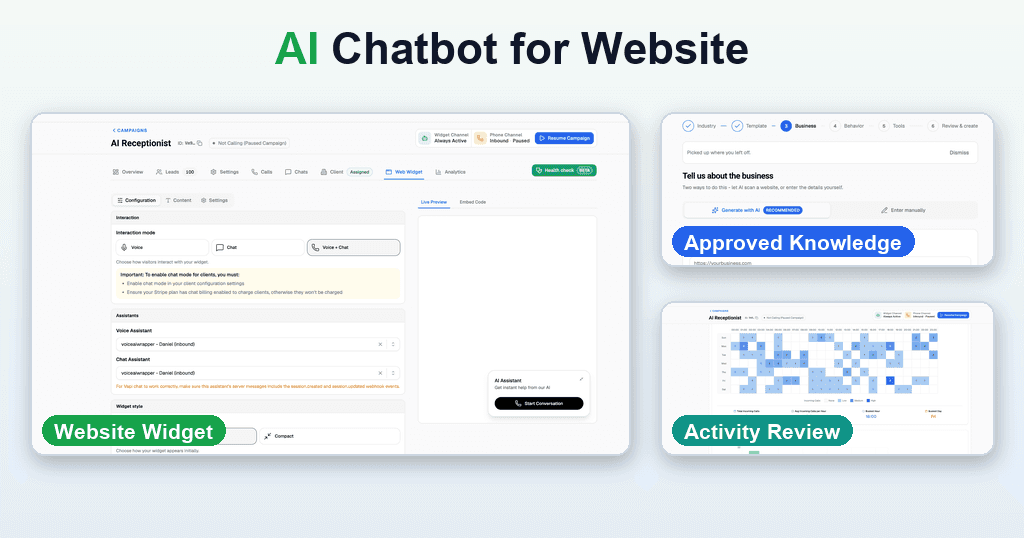
Video chapters and implementation notes

Video chapters
0:00 What a website chatbot can handle.
0:48 Build the agent and add website or file knowledge.
1:47 Choose text, voice, or both, then configure the disclaimer and lead fields.
2:17 Connect optional messages, webhooks, or outbound phone follow-up.
2:45 Copy the embed code and install the widget.
3:14 Set up branded client portals and billing plans.
4:06 Let clients configure their own agent where appropriate.
AI Chatbot for Website: Set One Up Without Code
Duration: 5 minutes 5 seconds. Uploaded September 9, 2026.
In five minutes, Raj shows the path from agent setup to client billing. He chooses an industry and receptionist role, adds website pages or files, selects text, voice, or both, configures consent and lead fields, connects optional email, SMS, WhatsApp, CRM, calendar, handoff, or outbound-call actions, copies the embed code, then shows branded portals and client plans. Each action still depends on the chosen provider, connected tools, and plan. Watch the full demonstration on YouTube.
What you will have at the end
A website widget configured for one clear visitor job.
An approved knowledge set with an owner and review date.
A tested route for leads, bookings, or human follow-up.
An embed snippet ready for a staging site.
A short launch checklist and a defined fallback when an action fails.
For agencies, a client portal and billing offer matched to the current plan.
What you need before you start
Access to the client’s approved website pages, FAQs, policies, and service details.
A decision on what the chatbot may answer, what it must refuse, and when a person takes over.
Access to the CRM, calendar, inbox, webhook, or phone workflow you plan to test.
Permission to add the embed code to a staging version of the website.
A named owner for launch approval and post-launch review.
Build, configure, test, deliver
Build: choose one job and approve the knowledge it may use.
Configure: select the assistant, channels, greeting, lead fields, style, actions, and handoff.
Test: verify good paths, failure paths, mobile display, and saved records.
Deliver: install on production, grant the right client access, and review outcomes.
Choose one job before you configure the widget
A bounded job is easier to test and maintain than an undefined general assistant. Start with one of these outcomes.
01 · Answer approved questions
Help visitors understand services, opening hours, location, service area, and the next appropriate step. Define what the chatbot must not answer.
02 · Capture and qualify an enquiry
Collect only the fields the client needs, explain why each field is requested, and route the completed enquiry to the agreed system or person.
03 · Book or route the next step
Offer a calendar action or human handoff only when the connected provider, calendar, and workflow support it. Specify what happens when no slot or person is available.
2. Prepare approved knowledge
Use client-approved website pages and files. Crawling a website does not make every page accurate or current. Remove stale pages, name an owner for every source, and set a review date.
Approved-information checklist
Services and exclusions
Opening hours and holiday exceptions
Service area and location details
Pricing boundaries and when a quote is required
Booking, cancellation, and rescheduling rules
Escalation contacts and operating hours
Privacy and consent language
A named owner and review date for each source
Decide what the chatbot should say when the approved source does not contain the answer. A safe fallback is more useful than a confident guess.
3. Configure Text, Voice, or Voice + Chat
Choose Text, Voice, or Voice + Chat where the connected provider and plan support it. Configure the assistant, greeting, disclaimer, lead fields, visual style, and live preview before creating the embed code.
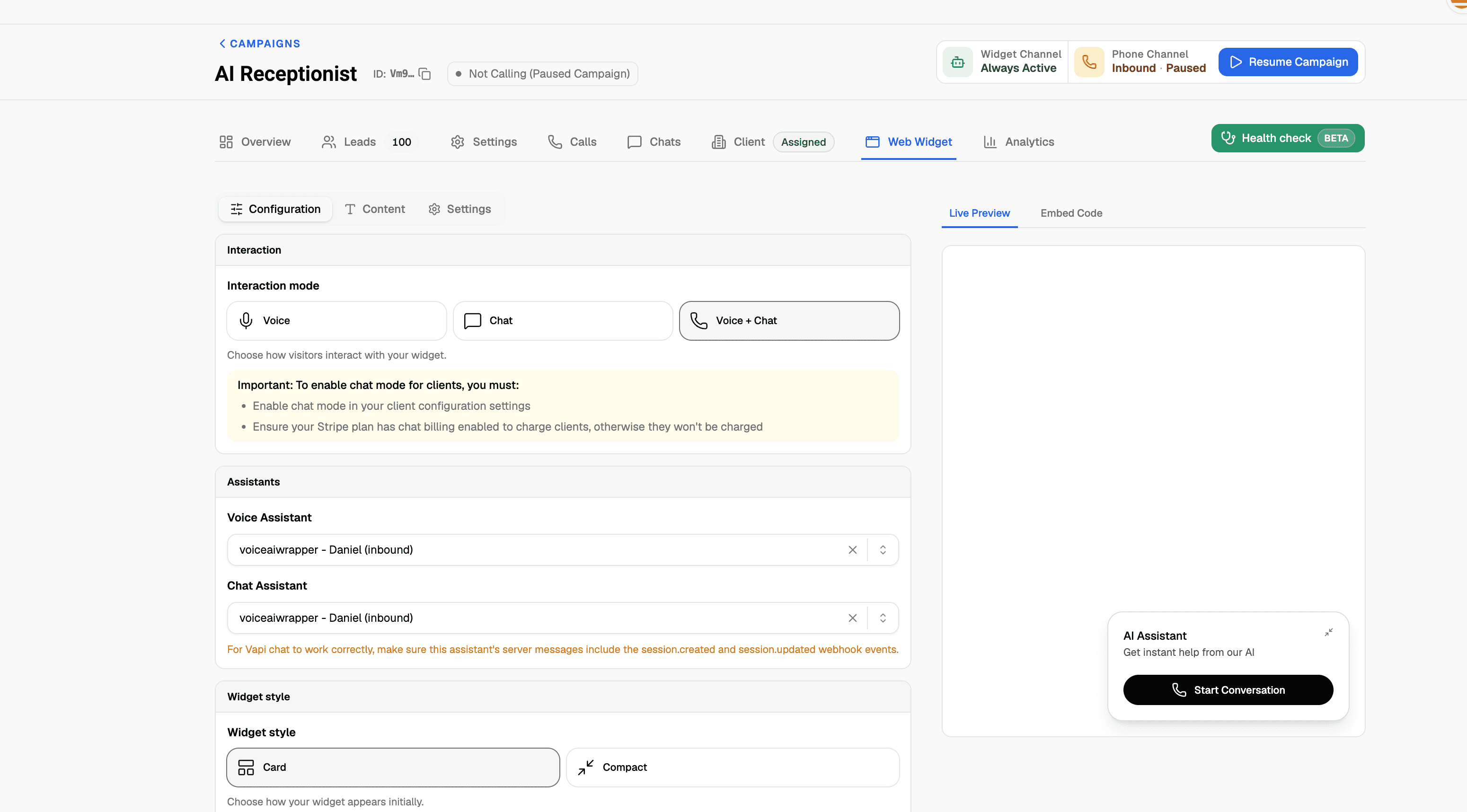
What this screenshot shows: the Web Widget setup for an AI Receptionist campaign. Choose Voice, Chat, or Voice + Chat, assign the correct assistant to each channel, select the widget style, and check the live preview. What to verify: chat billing is enabled where required, the right assistant is assigned, and the preview matches the client’s site before you copy the embed code.
4. Add useful actions and test the result
Actions may send email, SMS, or WhatsApp through configured tools, write data to a CRM, book a calendar slot, start an outbound qualification call, or route to a person. Each example depends on supported provider tools or a tested webhook. Do not promise every action for every provider.
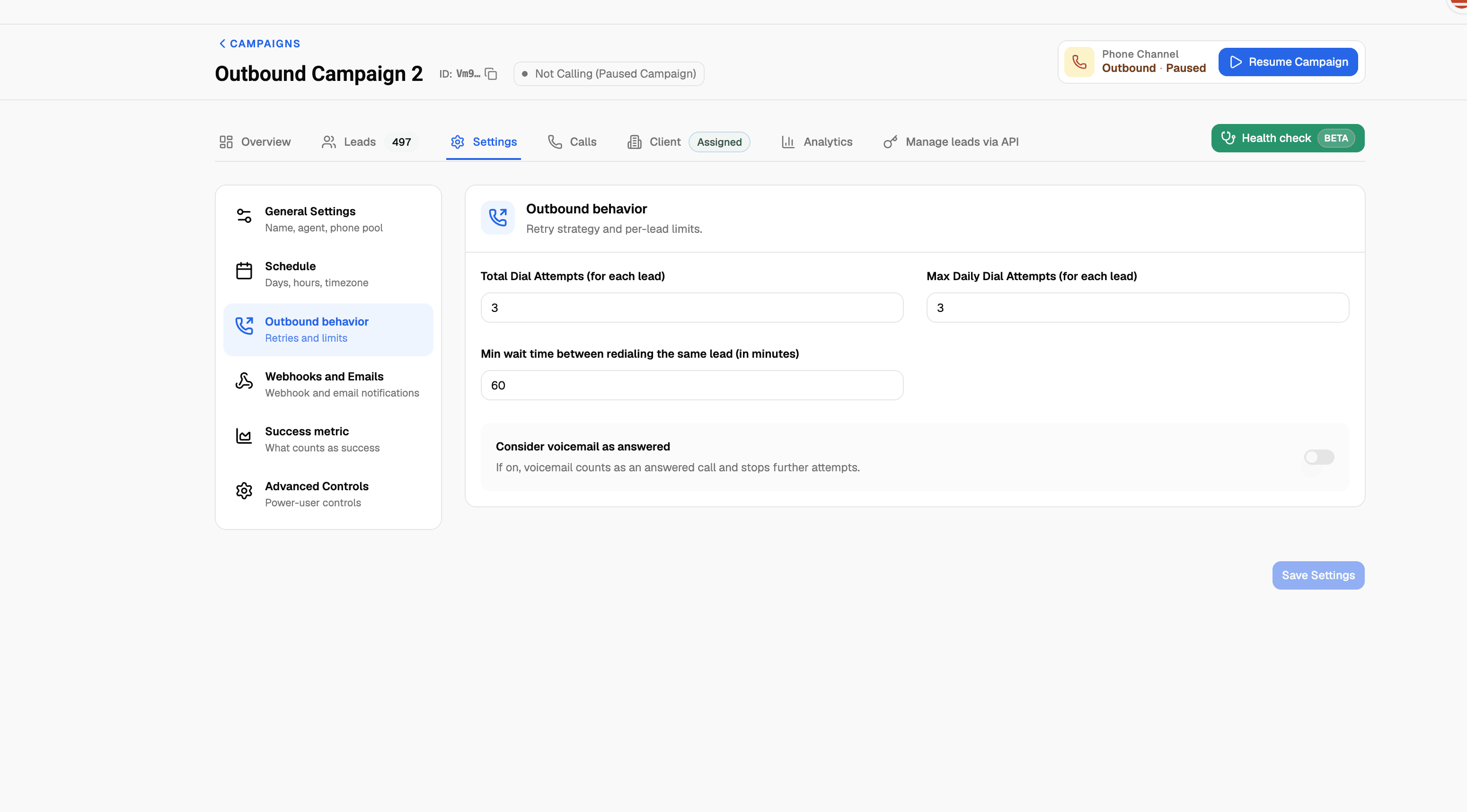
What this screenshot shows: optional outbound phone follow-up settings. Total dial attempts, daily limits, retry delay, and voicemail behavior control what happens after a website lead triggers a call. What to verify: the client has approved the retry policy and voicemail handling. This is not a standard website-chat setting, and it does not prove that outbound calling is available for every provider.
5. Deploy the embed code on staging first
Install the widget on a staging page.
Check the complete flow on desktop and phone.
Measure page speed before and after installation.
Check that the widget does not cover navigation, forms, cookie controls, or another chat tool.
Verify the privacy notice and consent language.
Release to production only after the owner approves the tested version.
The embed step is copy-and-paste, but somebody still needs permission to edit the website. A developer may be needed when the site has a strict content security policy, a controlled tag manager, or custom routing.
6. Run a pre-launch test protocol
This protocol is based on the workflow shown in Raj's video and the current product interface. It does not claim that a specific client deployment has passed.
Ask a question with a known, approved answer.
Ask a question that is absent from the approved sources.
Enter incomplete or incorrect visitor details.
Force a tool or webhook failure.
Request an unavailable calendar slot.
Try human transfer when no person is available.
Test background noise and interruptions in voice mode.
Check mobile rendering, keyboard access, and tap targets.
Submit the same lead twice and verify duplicate handling.
The saved CRM or calendar record is the source of truth. Do not rely only on what the chatbot says it completed.
7. Review conversations, leads, and reporting
Review conversations, transcripts, captured leads, activity by time, and call-end reasons. Calls, chats, and minutes show activity. They do not prove a booking or sale without confirmation in the client's system of record.
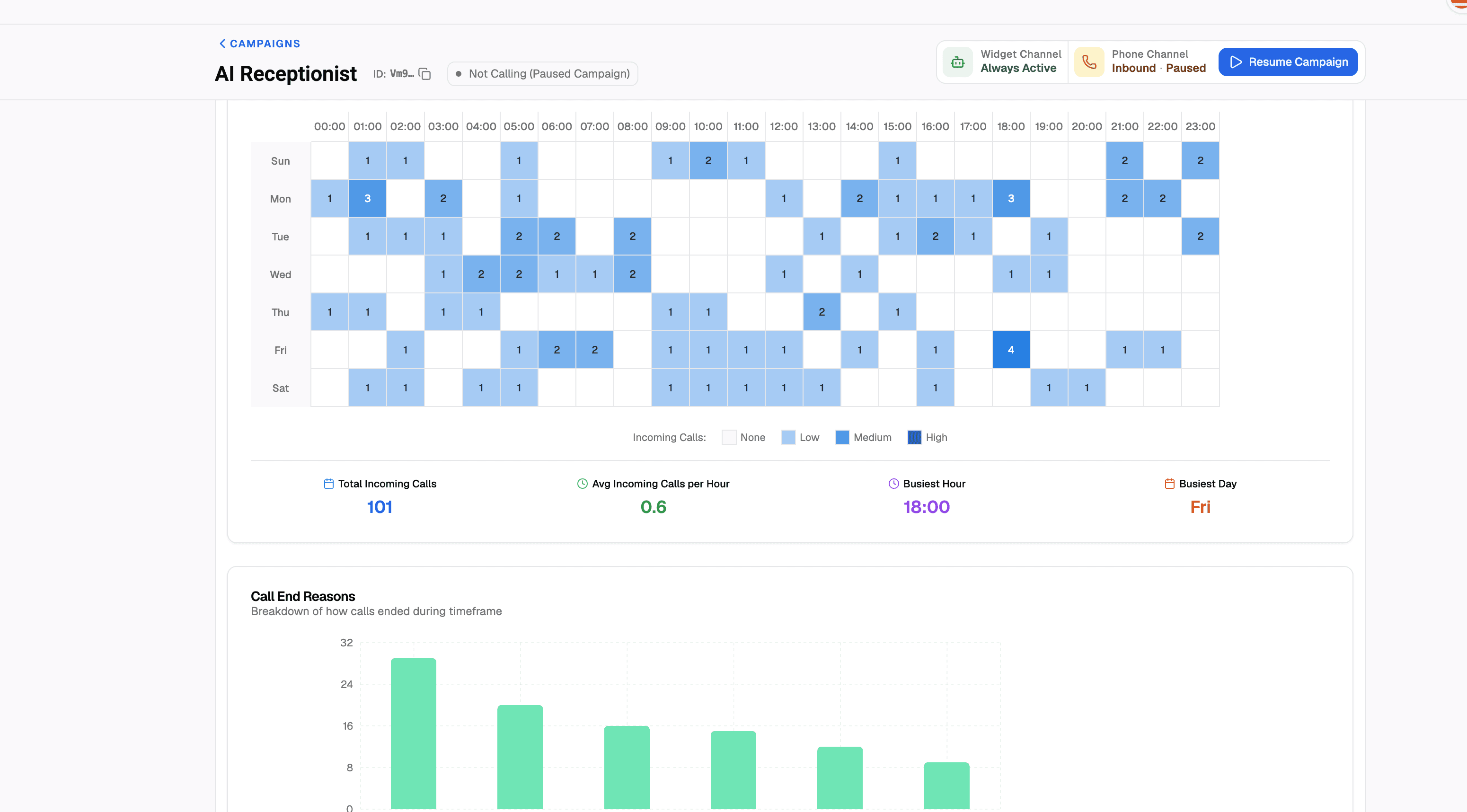
What this screenshot shows: campaign analytics. The heatmap shows when inbound activity occurs; totals and call-end reasons help you spot volume and failure patterns. How to use it: treat this as an operational view. Verify bookings, qualified leads, and revenue in the client’s CRM or calendar.
8. Package the service for an agency client
Use a branded portal, client permissions, subscriptions, usage packs, one-time setup charges, and currencies where supported. Stripe or external billing options depend on the current plan. Provider and telephony usage remain separate. Check current VoiceAIWrapper plans and billing boundaries before quoting a client.
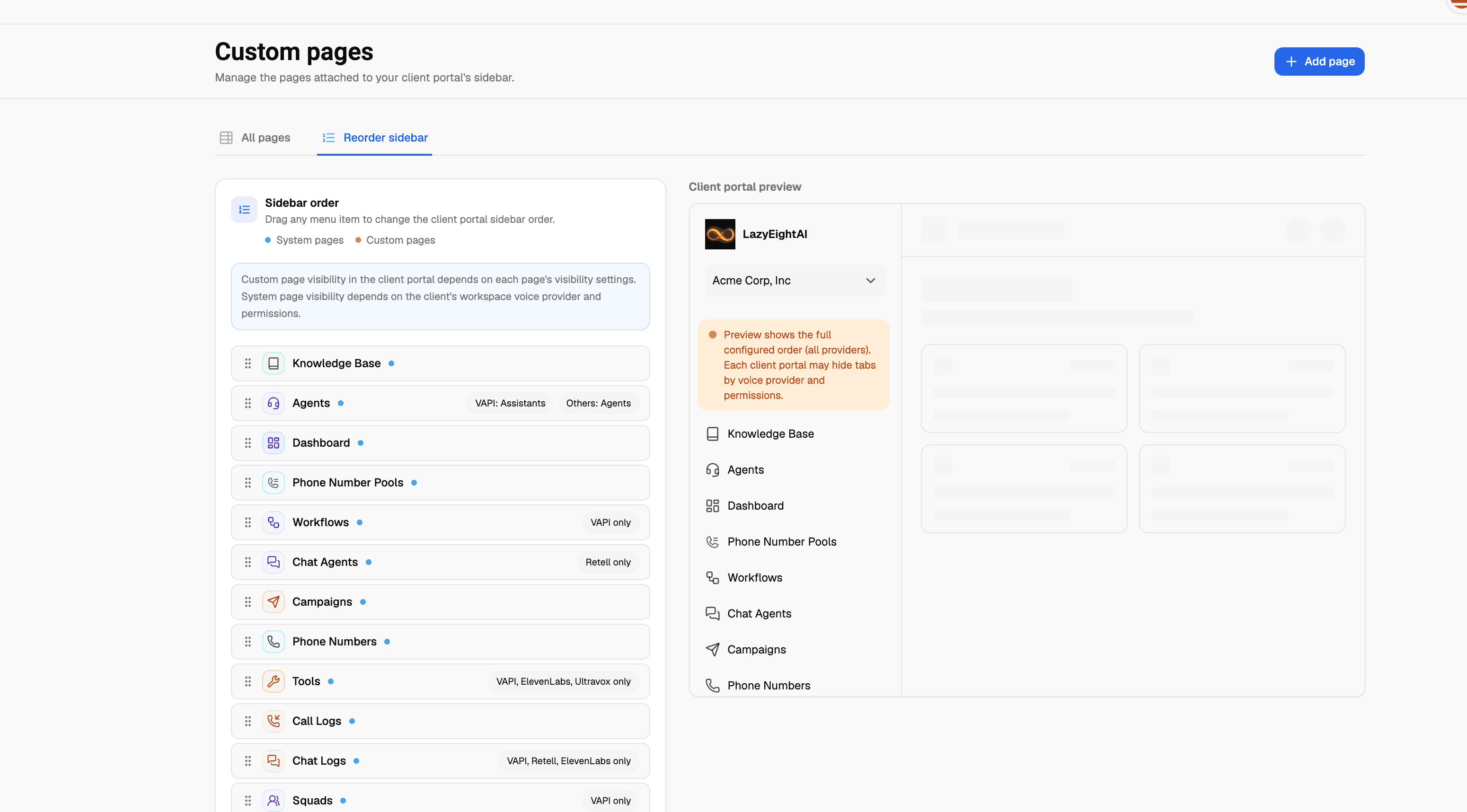
What this screenshot shows: client portal controls. Reorder pages and expose only the areas a client needs. Provider labels explain why some pages appear for some clients but not others. What to verify: review the portal as that client before handoff, including permissions, support access, and provider-specific pages.
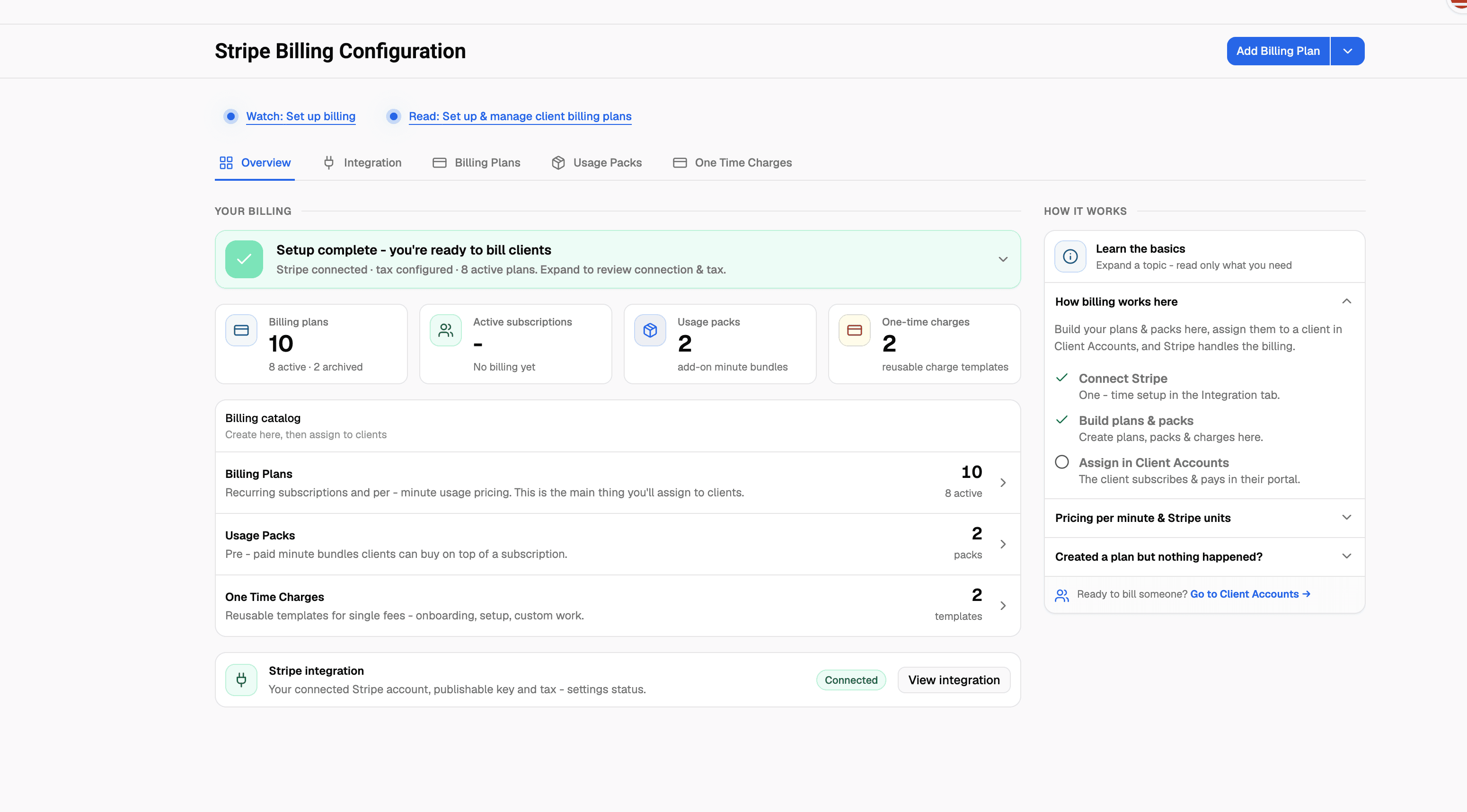
What this screenshot shows: Stripe billing setup. Recurring plans, prepaid usage packs, and one-time charges are separate products. What to verify: connect Stripe, create the plan, assign it to the client, and test the purchase path before sharing a pricing link.

What this screenshot shows: the public agency offer and support experience. It combines the white-label proposition, trial terms, integration list, and support messenger. How to use it: treat this as a reference for the client-facing service layer, not as proof that the chatbot embed has been installed.
Who owns each part of the deployment?
Area | Underlying provider | VoiceAIWrapper | Agency or client | |
|---|---|---|---|---|
Conversational runtime | Runs the model, voice, and provider tools | Connects supported provider accounts | Selects and configures the approved provider | |
Knowledge accuracy | Uses supplied context | Provides campaign and knowledge controls | Approves, dates, tests, and maintains sources | |
Widget and campaign setup | Exposes provider capabilities | Provides supported campaign and widget controls | Chooses settings and tests the client site | |
Client portal and reporting | Supplies provider records when available | Provides branded access and reporting views | Sets permissions and explains the metrics | |
CRM or calendar outcome | Runs supported tools | Supports configured integration paths | Verifies the saved record in the system of truth | |
Billing | Charges provider and telephony usage | Provides plan-dependent billing tools | Defines the client offer, contract, taxes, and collections | |
Consent and privacy | Provides platform controls | Publishes product and privacy information | Chooses lawful notices, consent, retention, and access | |
Human escalation | Runs supported transfer tools | Provides supported configuration controls | Names the owner, hours, fallback, and response process |
Who this fits
Agencies selling a managed website chatbot service.
Agencies that need branded client access and plan-dependent billing tools.
Teams prepared to own testing, approved knowledge, escalation, and client reporting.
When this does not fit
A single business that does not need client portals or rebilling.
A deployment that depends on an unconfirmed provider feature.
Regulated or high-risk advice without qualified review and a human fallback.
A website with no maintained source information.
A buyer seeking passive income with no operational owner.
Frequently asked questions
Q: What does an AI chatbot for a website do?
A: It answers approved questions by text or voice, captures selected details, and can trigger supported follow-up actions while the visitor stays on the site.
Q: Can visitors use both voice and text?
A: Yes, where the connected provider and VoiceAIWrapper plan support those modes. Confirm the exact configuration before promising it to a client.
Q: How do I train the chatbot on a client's business?
A: Provide approved pages and files, define boundaries and escalation, then test both known and unknown questions. A website crawl is not an accuracy guarantee.
Q: Can it capture leads and book appointments?
A: It can when the provider tools, CRM or calendar, consent, and webhook or integration path are configured and tested.
Q: How do I add it to a website?
A: Configure the widget, copy the embed code, install it on staging, test desktop and phone, then release the approved version to production.
Q: What should I test before launch?
A: Test answers, unknown questions, bad input, failed tools, unavailable calendar slots, unavailable human transfer, voice noise, mobile layout, and duplicate leads.
Q: Can an agency sell the chatbot under its own brand?
A: Yes, use the agency workspace and branded client portal where supported. The agency still owns delivery, approvals, consent, and client outcomes.
Q: Do I need a developer to install it?
A: Often, no. The product supplies an embed snippet. You still need access to the website, and some sites require a developer or administrator to approve scripts, content security rules, or tag-manager changes.
Related implementation resources
Choose the next guide based on the part of the workflow you are workin
Sources and verification
Use these product pages and help articles to confirm current capabilities before making a client commitment.
Limitations
Provider capabilities, plan access, messaging channels, telephony, and billing options can change. Check current documentation, provider settings, consent requirements, and contracts before making a client commitment.

Integrations
VoiceAIWrapper integrates with leading voice AI providers, automation platforms, CRM systems and more.



















View other use cases for voice AI white label
VoiceAIWrapper allows you to use voice AI for multiple business use cases, like sales lead qualification, inbound customer support, appointment scheduling, and white label AI receptionists for agencies.